Closed question / Automatic question
Closed questions provide respondents with predefined answer options to choose from. This question type offers various display modes and configuration options to suit different survey needs.
For advanced users, you can also configure automatic mode where responses are assigned without user interaction.
Creating a closed question
To create a closed question, select the closed question type from the question menu. You can configure various aspects of the question including display modes, answer options, and special behaviors.

Basic configuration
Excluding from pairing
If this is a recruiting question at the beginning of the questionnaire, you can exclude it from pairing to prevent it from affecting other question relationships.
Display a visual
You can add visual elements to enhance the question presentation and make it more engaging for respondents.
Answer modes
Classic mode
The classic mode displays answers as a standard list of options. Respondents can select one answer by default.
Multi Choice option When enabled for classic mode, respondents can select multiple answers from the available options. You can set up a minimum number of required answers to ensure sufficient data collection.
Collect appearance

CATA mode (check all that apply)
CATA mode allows you to set up several columns (1 to 5) for more complex response structures. This is useful for matrix-style questions or when you need to organize answers in multiple categories.
Multi Choice option CATA mode inherently supports multiple selections, and you can further configure minimum/maximum answer requirements.
Collect appearance

Slider mode
Slider mode presents answers as an interactive slider control, allowing respondents to select values along a continuous scale. This is particularly useful for rating or measurement questions where precise positioning matters.
Collect appearance

Stepper mode
Stepper mode displays answers with increment/decrement controls, allowing respondents to adjust their selection using step-by-step navigation. This mode is ideal for numeric inputs or ordered selections.
Collect appearance

Stars mode
The stars mode creates a rating question where respondents rate items from 1 to 5 stars.
Collect appearance

NPS mode
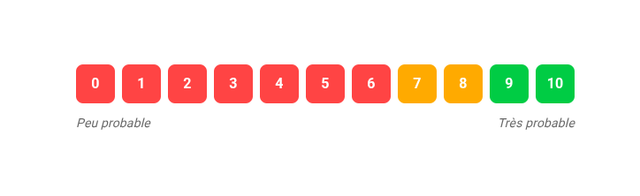
Net Promoter Score (NPS) interface for each item, featuring the standard 0-10 scale with customizable labels. Perfect for measuring customer loyalty and recommendation likelihood across multiple products or services.
Collect appearance
Additional option You can also add a sixth value presented as a checkbox below the stars for additional options like "Not applicable" or "Don't know."

Answer management
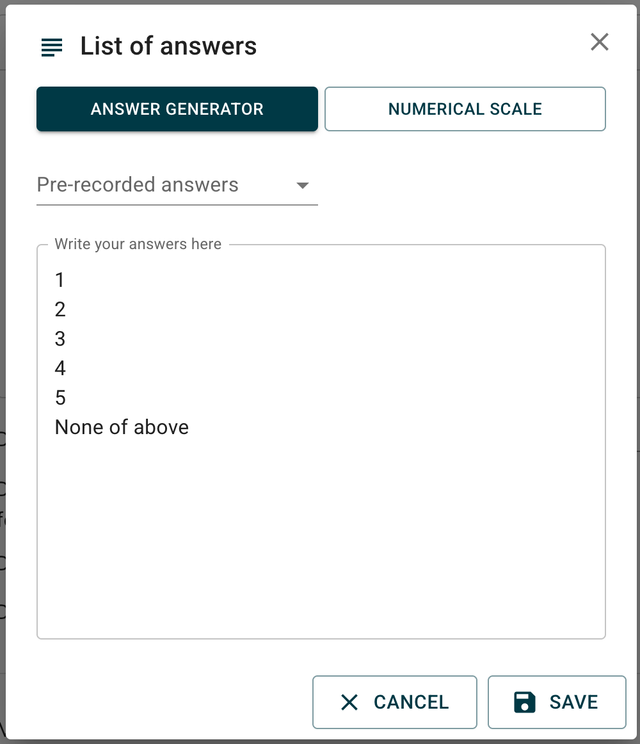
List of answers
You can manage your answer list in several ways:
- Copy-paste lists directly from Word or Excel
- Delete unwanted answers
- Move answers up or down to reorder them
- Edit individual answer text
Random order
Reduce bias Enable this option to show answers in a random order to each respondent, reducing order bias in responses.
Display answers reversed
Enable the reversed answer display option to present answer choices in reverse order, which can help mitigate response bias.
Sort like
The "sort like" option allows you to apply the same answer ordering as a previously configured question block. This feature is particularly useful when you have multiple related questions that should maintain consistent answer sequences.
Consistency across questions Use this option to ensure that answer choices appear in the same order across related questions, improving respondent experience and data quality.
Generate preset answers
Use the preset generator to quickly create:
- Standard answer sets
- Numerical scales
Time saver This feature enables input of all answers/items in one operation, saving time when creating common question types.
Advanced answer configuration
Edit answer parameters
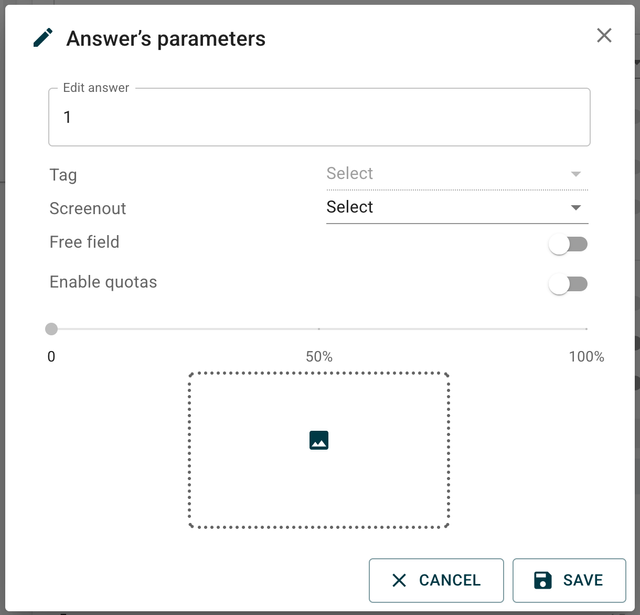
Each answer can be individually configured using the "Edit answer's parameters" menu:
- Text modification: Change the answer text
- Tag management: Add or modify tags for answer categorization
- Screen-out: Mark answers that should end the survey
- Free field: Allow users to type their own answer
- Exclusive: Set the answer as mutually exclusive with others
- Quotas: Enable quota management for this specific answer
Quota management
Sample composition When quotas are enabled, use the slider to set percentage-based quotas for individual answers, helping you achieve your desired sample composition.
Automatic reclassification
Numeric field for reclassification
Enable "Display a numeric field for automatic reclassification" to allow automatic categorization of numeric responses. Choose between:
Intervals
Respondents enter a numerical value in a free field, which gets automatically reclassified into predefined ranges.
Important validation rule Values must contain 2 numbers to be valid.
- ❌ Incorrect: "Less than 18 years old"
- ✅ Correct: "0-18"
Lists
Respondents enter a value that gets matched against predefined lists.
Example If someone answers "50" as a department number, they'll be automatically assigned to "Normandy" because "50" is part of the Normandy department list.
Advanced features
Tag management
You can organize and categorize your answers using a comprehensive tag system.
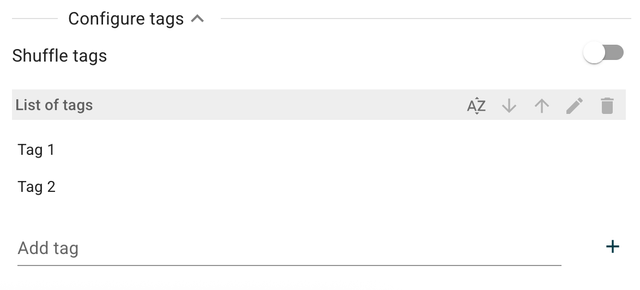
Organization benefits Tags help you organize answers logically and make it easier to manage complex questionnaires with many answer options.
Adding tags to answers
- Add custom tags to individual answers for better categorization
- Use descriptive tag names that reflect the content or purpose of the answer
- Multiple tags can be assigned to a single answer
Sorting by tags
- Sort your answer list by tags to group related answers together
- Filter answers based on specific tags to quickly find what you need
- Organize your questionnaire structure more efficiently
Automatic mode
In automatic mode, the question doesn't appear on screen. Instead, the algorithm assigns one of the potential responses to each respondent.
Example If potential responses are 1, 2, and 3, each respondent gets a randomly assigned response.
Important requirement This function must be used with conditions and is typically combined with advanced logic for complex survey flows.
When use the automatic mode?
Use automatic mode when you want:
- to assign a value to a respondent based on their previous answers based on conditions
- to classify them into a specific cell (randomly or based on conditions)
- to capture a URL parameter by setting the ref of the question like QP_name_of_the_param; e.g. QP_COUNTRY
- to capture the loop number during a loop by setting the ref (e.g. G2_ITERATION_NUMBER)