Manage visitors access
Overview
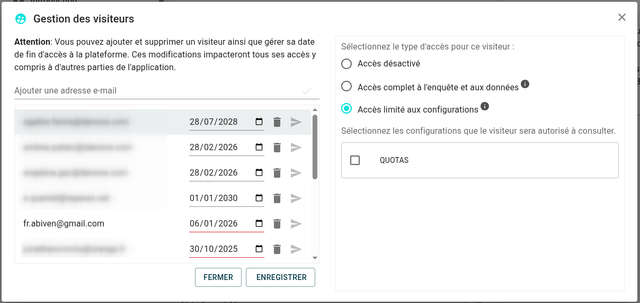
The visitor management system allows you to control who can access your survey, data and reporting. You can invite collaborators by email and define their access rights with granular control over permissions and expiration dates.
Adding a Visitor
Add an Email Address
To invite a new visitor to your survey:
- Navigate to the visitors management interface
- Enter the email address of the person you want to invite in the email field
- The visitor will receive an invitation to access the survey according to the permissions you set
Make sure to enter a valid email address. The visitor will receive a mail to access the survey with a link inside.
Set the Expiration Date
You can control how long a visitor has access to your survey by setting an expiration date:
- Click on the expiration date field
- Select the date when the visitor's access should expire
- The visitor will automatically lose access after this date
Setting an expiration date is useful for temporary collaborators or when you want to limit access for a specific period. If you need to extend access later, you can edit the visitor's settings and update the expiration date.
Access Types
When inviting a visitor, you must select the type of access they will have. There are three access levels available:
Disabled Access
When a visitor's access is disabled:
- The visitor cannot access the survey or any related data
- This option is useful for temporarily suspending access without removing the visitor from the list
- You can re-enable access at any time by changing the access type
Full Access to Survey and Data
This option grants the visitor complete access to:
- The survey structure and all questions (in read-only mode)
- All collected data and responses (in read-only mode)
- Reporting and analytics features
Full access should only be granted to trusted collaborators, as they will be able to view all sensitive data and make changes to the survey configuration.
Limited Access to Configurations
This option provides restricted access where you can:
- Grant access only to specific configurations
When you select this option, an additional step appears:
Select Authorized Configurations
After choosing limited access, you need to specify which configurations the visitor can view:
- A list of available configurations will be displayed
- Check the boxes next to each configuration you want to grant access to
- The visitor will only be able to view and work with the selected configurations
- You can modify these permissions at any time by editing the visitor's access settings
- Use limited access for external consultants or partners who only need to see specific parts of your survey
- Regularly review visitor permissions to ensure they still align with your collaboration needs
- Consider using expiration dates for all visitors to maintain security
Managing Existing Visitors
You can modify visitor settings at any time:
- Edit email addresses
- Change access types
- Update expiration dates
- Add or remove configuration permissions
- Disable or re-enable access
Changes to visitor permissions take effect immediately.