Media
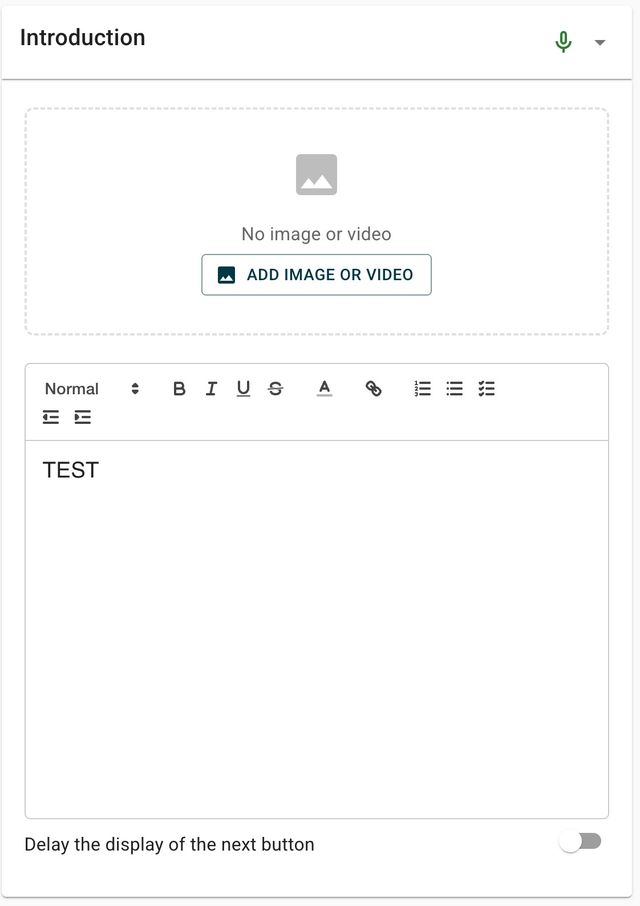
Media assets allow you to add visual content to survey questions, making them more engaging and providing additional context to respondents. You can add images or YouTube videos to most question types.
Definition
Media assets are visual elements (images or videos) that you can attach to survey questions. These assets appear alongside the question text to provide visual context, examples, or instructions. Media can be added to all question types except R3M questions.
When to use
Use media when you need to:
- Show visual examples of products, concepts, or scenarios.
- Provide context that is difficult to describe in text alone.
- Increase respondent engagement with visual content.
- Demonstrate instructions or examples visually.
Avoid adding media that does not directly support the question, as it may distract respondents or increase survey completion time.
Key behaviors & constraints
- Media is supported for all question types except R3M questions.
- You can add one media asset per question.
- Media types supported: static images and YouTube embedded videos.
- For questions inside a loop, you can use iteration-specific images that change for each loop iteration.
- Images must be uploaded before they can be attached to questions.
- YouTube videos are embedded using the video URL.
Adding media to questions
Add an image
- Open the question editor for the question where you want to add media.
- Click the media button or media section.
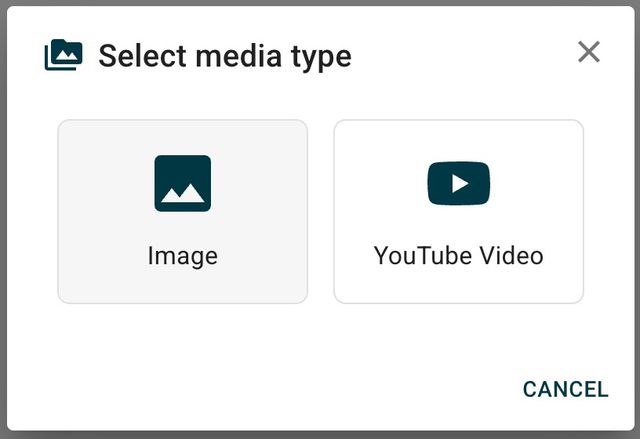
- Select "Image" as the media type.
- Choose an uploaded image from your media library or upload a new image.
- The image appears in the question preview.
Add a YouTube video
- Open the question editor.
- Click the media button or media section.
- Select "YouTube video" as the media type.
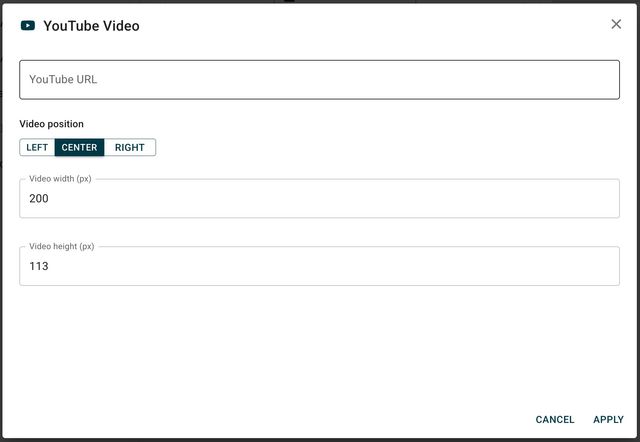
- Paste the YouTube video URL.
- The video is embedded in the question preview.
Add iteration images (for loop questions)
When a question is inside a loop, you can assign different images for each iteration of the loop.
- Open the question editor for the looped question.
- Click the media section.
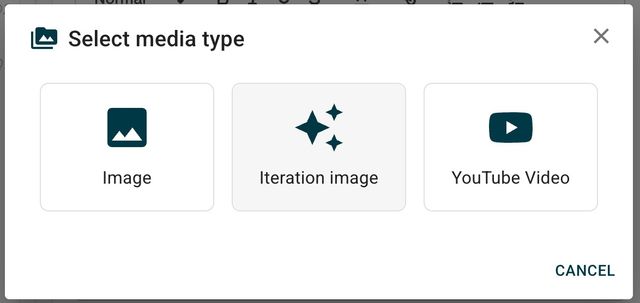
- Select "Iteration image."
- For each loop iteration, select or upload the corresponding image.
- The image changes dynamically based on the current loop iteration when respondents take the survey.
Examples
Product evaluation: Add product images to questions asking about product features or satisfaction. Each question shows the relevant product image above the question text.
Video instructions: Embed a YouTube tutorial video in an onboarding question to explain how to use a feature before asking for feedback.
Loop with iteration images: In a survey asking about multiple products, use a loop with iteration images so each product question displays the correct product image automatically.